logo
家へ
製品
わたしたち に つい て
工場ツアー
品質管理
連絡 ください
見積依頼
ニュース
ブログ
ホーム ブログ

Sony Camera HDMI Guide for Bigscreen Viewing

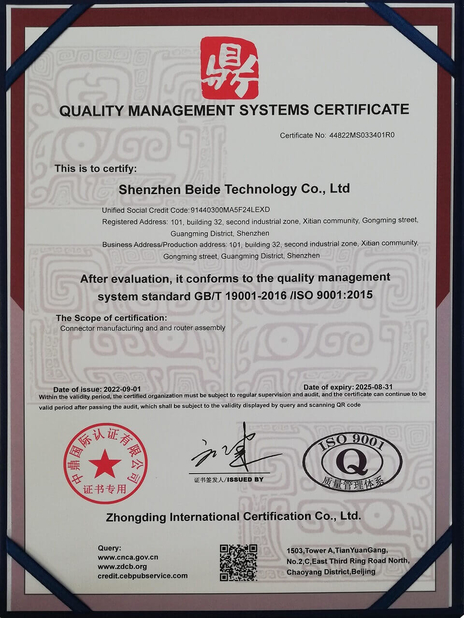
認証
中国 DONGGUAN BEDE MOLD AND PLASTIC FRODUCTS CO., LID 認証
顧客の検討
こんにちは エリッサ 去年の初め 私の同僚が 20本の電線を 注文しました あなたの会社で作ったケーブルは かなりうまく機能しました 私はあなたの会社を使って 将来 このようなケーブルを もっと生産することに興味があります

—— マシュー・ゲッツマン

競争力のある価格,高品質のサービス,私たちは長期間あなたと協力します!

—— ドンゲク・イリア

オンラインです
会社 ブログ
Sony Camera HDMI Guide for Bigscreen Viewing
最新の会社ニュース Sony Camera HDMI Guide for Bigscreen Viewing

Have you ever felt frustrated when your stunning photos and videos were confined to the small screen of your camera? Sharing travel memories with family and friends shouldn't be complicated. With a simple HDMI connection, you can display content from your Sony camera or camcorder directly on your television.

1. Hardware Connection: Preparation and Setup

Before beginning, ensure you have the following equipment:

  • Sony digital camera or camcorder: Verify that your device supports HDMI output.
  • HDMI cable: This serves as the bridge between your camera and TV. Note that camera connections typically require an HDMI Mini interface, while TVs use standard HDMI ports. For optimal image and sound quality, use cables with the official "Premium High Speed HDMI™ Cable" certification.
  • Television: Must have an HDMI input port.

Connection steps:

  • Locate the HDMI Mini port on your camera and the HDMI input on your TV.
  • Connect one end of the HDMI cable to your camera's HDMI Mini port and the other end to your TV's standard HDMI port.
2. Switching Input Sources: Finding Your Device

After establishing the physical connection, select the correct input source on your television:

  • Power on both your TV and camera.
  • Using your TV remote, locate the "Input," "Source," or similar button (often labeled "INPUT" or featuring a box-with-arrow icon).
  • Cycle through available inputs until your camera's display appears. Your TV may show connection labels like "HDMI 1" or "HDMI 2" - select the port matching your connection.
3. Content Playback: Enjoying Your Media

Once properly connected, you can view your camera's content on the TV:

  • Ensure your camera is powered on and set to playback mode (consult your device manual for specific instructions).
  • Use your camera's controls (play, pause, fast-forward, rewind) to navigate content. Some TVs may offer limited control through their remotes if BRAVIA Sync (HDMI-CEC) is supported.
4. BRAVIA Sync: Controlling Your Camera with Your TV Remote

Sony's BRAVIA Sync feature allows compatible devices to be controlled through your television remote. When supported by both devices, you can navigate camera content without touching your camera.

To enable BRAVIA Sync:

  • Confirm both devices support BRAVIA Sync (check user manuals or settings menus).
  • Enable BRAVIA Sync in your TV's settings (location varies by model).
  • Connect devices using an HDMI cable.

When successfully connected, your TV should automatically detect the BRAVIA Sync-compatible camera, allowing TV remote control.

5. Supported File Formats: Ensuring Compatibility

Before playback, verify your TV supports your camera's file formats. Common formats include:

  • Video: MP4, MOV, AVI, MKV
  • Images: JPEG, PNG, GIF

Consult your TV's manual for supported formats. For unsupported files, conversion software can reformat content for compatibility.

6. Troubleshooting: Common Issues and Solutions

Connection and playback issues may occasionally occur:

  • TV doesn't recognize camera:
    • Check HDMI cable connections
    • Verify correct input source selection
    • Try alternative HDMI cables
    • Restart both devices
  • Playback stuttering or artifacts:
    • Use certified Premium High Speed HDMI™ cables
    • Reduce video resolution settings
    • Check device hardware capabilities
  • TV remote doesn't control camera:
    • Confirm BRAVIA Sync compatibility
    • Enable BRAVIA Sync in TV settings
    • Verify HDMI cable supports BRAVIA Sync

With these guidelines, you can seamlessly connect your Sony camera to your television, transforming how you share and enjoy your visual memories.

パブの時間 : 2026-04-13 00:00:00 >> blog list
連絡先の詳細
DONGGUAN BEDE MOLD AND PLASTIC FRODUCTS CO., LID

コンタクトパーソン: Ms. admin

電話番号: 15915396878

私達に直接お問い合わせを送信 (0 / 3000)